Add & invite members
Build your roster by emailing invitations to members, who set their own passwords — or add members directly and manage roles, permissions and sign-in emails.
About 6 minutesStep 2 of 20 in team setup
Open Team Members
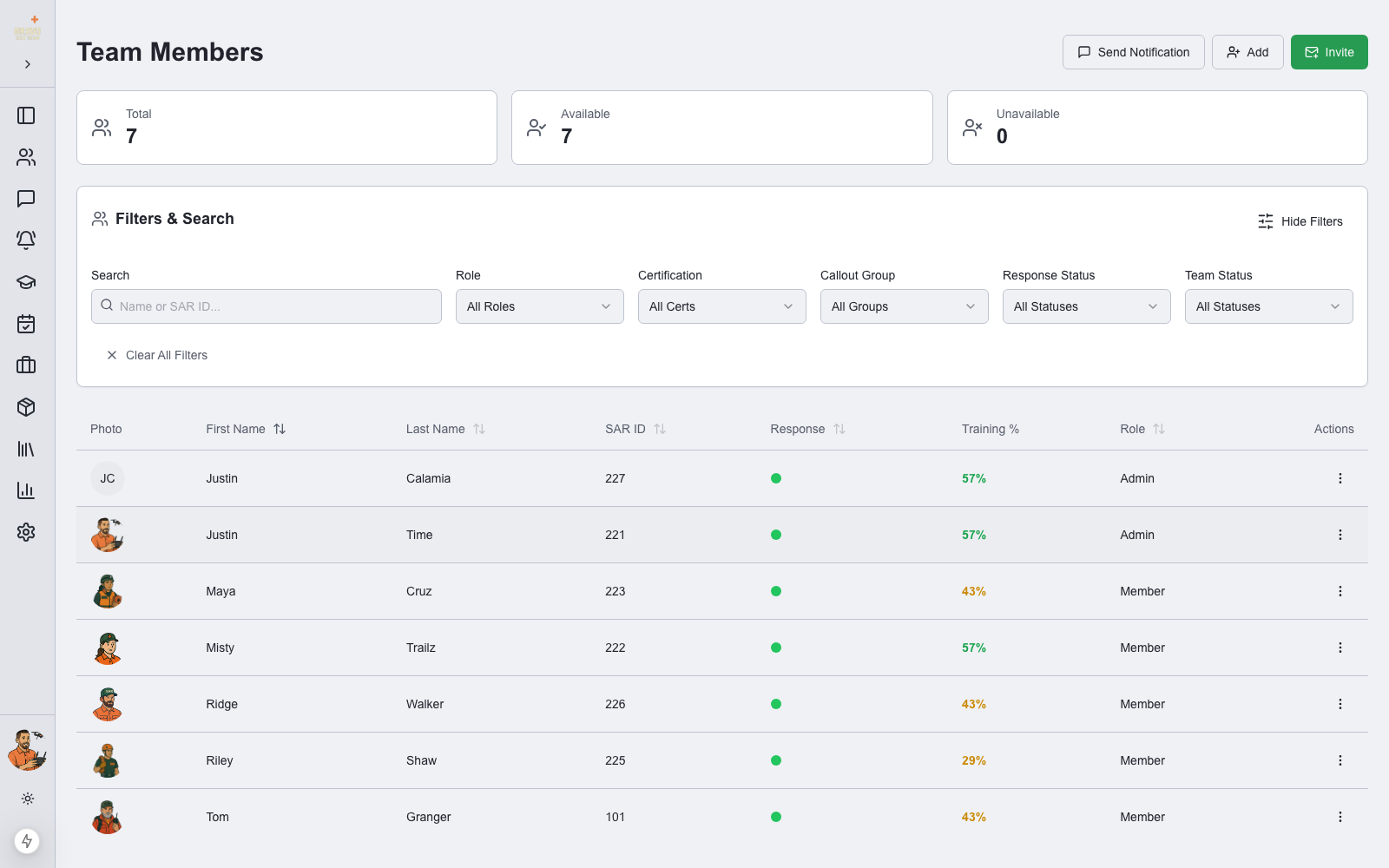
Click Team Members in the sidebar (or expand the Team Members section in Admin Settings). The roster shows every member with their SAR ID, response status, training attendance percentage, and role. Three buttons in the top-right corner drive everything: Send Notification, Add, and Invite.
Send an invitation
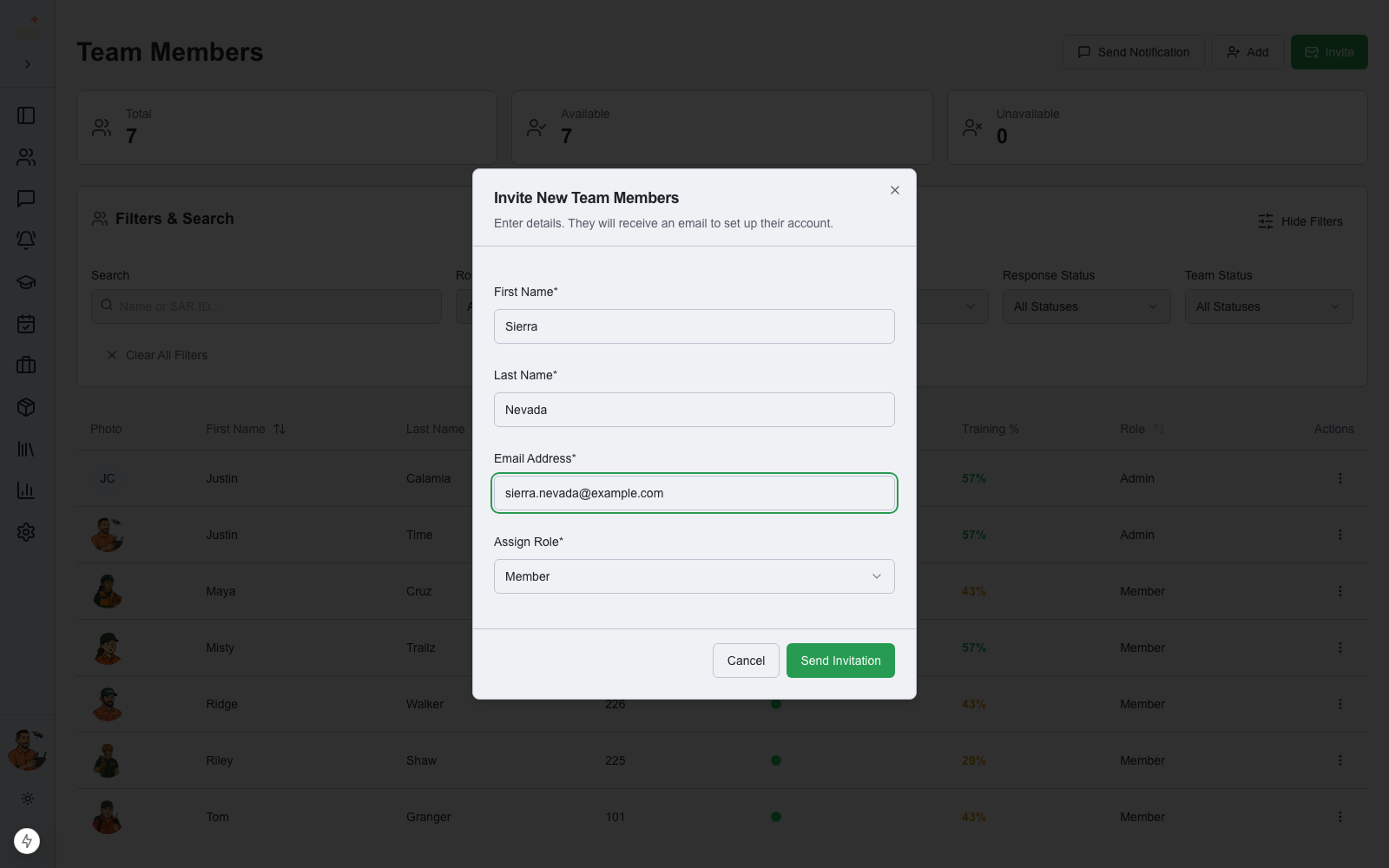
Click Invite. Enter the member’s first name, last name, and email address, and assign a role — Member or Admin. Click Send Invitation.
The member receives an email with a secure join link. When they open it, their name is pre-filled; they add an optional SAR ID, choose a password, and land directly on your team’s dashboard. No manual account setup on your end.
Pending invitations are listed in Admin Settings → Team Members, where you can revoke any invite that hasn’t been accepted yet.
Or add members directly
Use the Add button to create a member profile yourself — useful for members who don’t need a login right away or for pre-loading your roster. You can set their SAR ID, role, certifications, skills, callout groups, and positions all in one form.
Assign roles and permissions
Admins can manage everything; Members see the day-to-day views. For finer control, open any member’s profile to grant individual permissions like creating callouts, creating trainings, or managing equipment — so a training officer or operations lead can run their area without full admin access.
Change a member’s email address
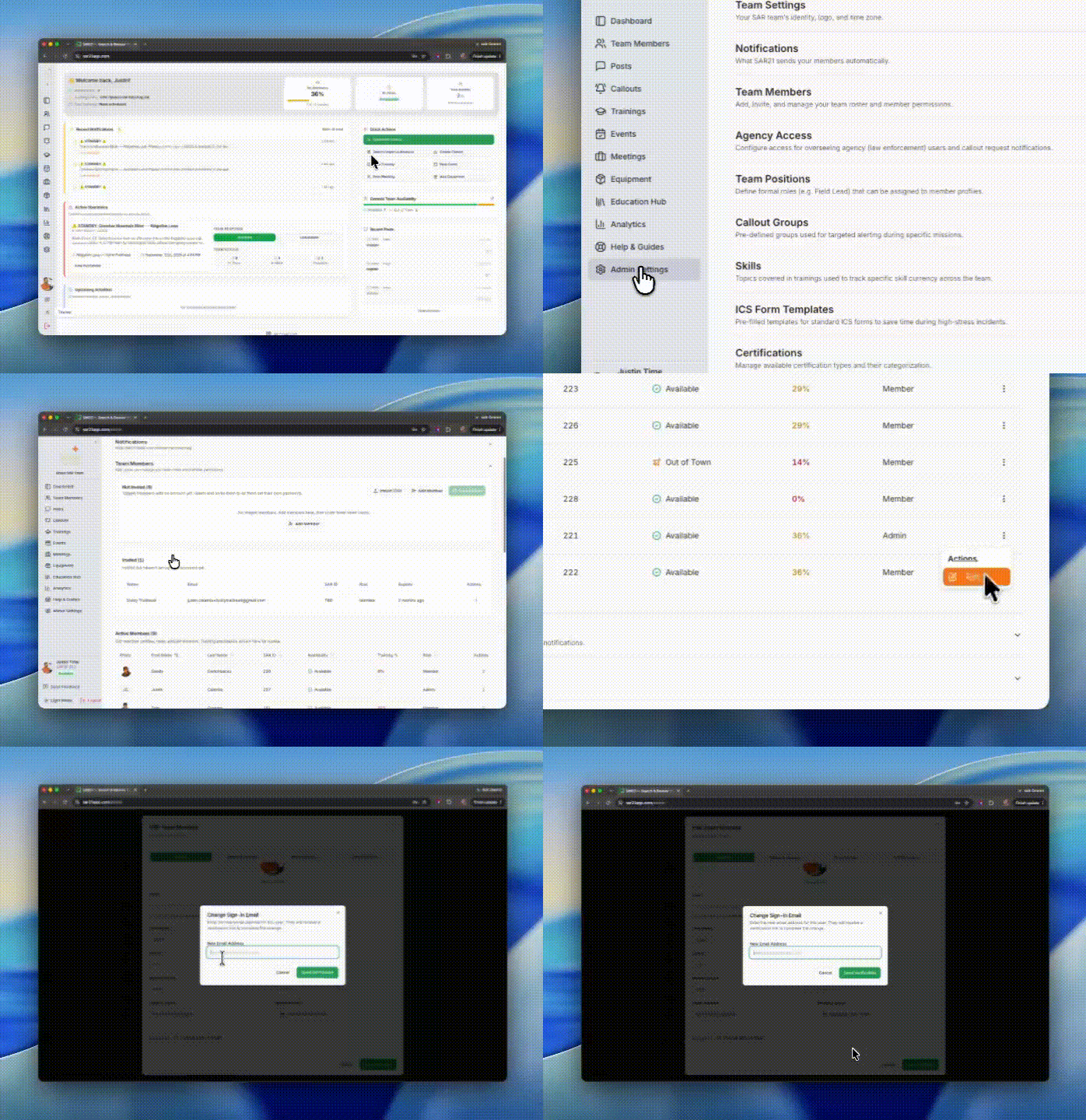
Members can’t change their own sign-in email from their profile page — an admin does it for them. Open Team Members, click the member to open their profile, and scroll to the Security section. Click Change Sign-In Email, enter the new address, and confirm.
The member receives a confirmation link at the new address and signs in with it from then on. Everything else stays exactly as it was — their history, certifications, permissions, callout responses and role are all untouched.
Admins can change their own email the same way: open your own member record from Team Members and use the same Security action. The Email field on the profile page is read-only for everyone, including admins.