Track volunteer hours
Turn attendance into approved hours of service without a paper sign-in sheet — draft time sheets from every training, callout, event and meeting, let members log unscheduled work, approve from one queue, and report by member or category.
About 8 minutesStep 11 of 20 in team setup
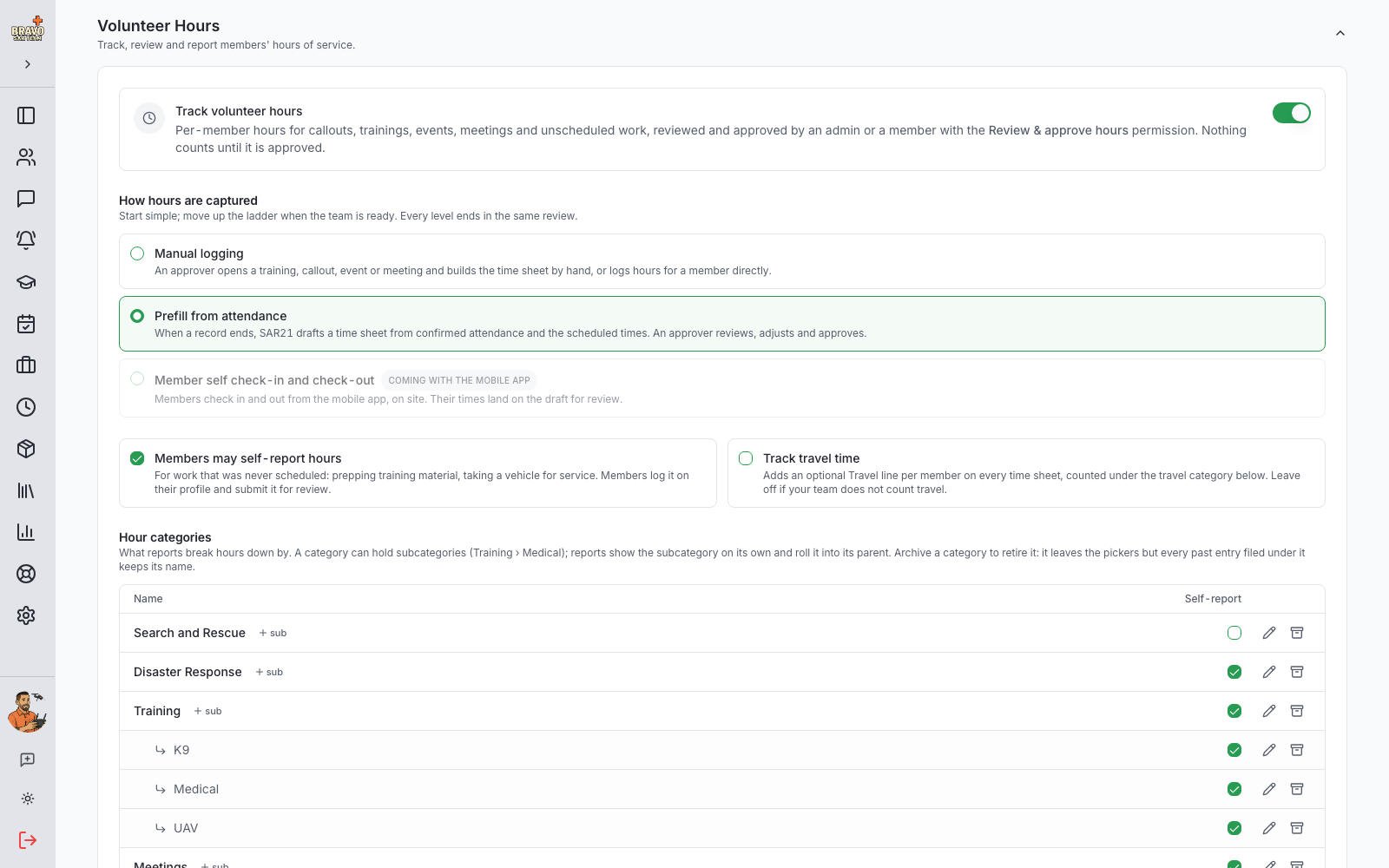
Turn on hour tracking
Open Admin Settings and expand Volunteer Hours. Flip the switch and SAR21 seeds a starter set of categories (Search and Rescue, Training, Meetings, Equipment Maintenance, Community Outreach and a few more) that you can rename, add to or archive.
Then pick how hours get captured. Every team runs this differently, so the ladder starts simple and you climb it when you are ready:
- Manual — an approver logs hours for members, or drafts a time sheet from a record with one click.
- Prefill from attendance — within an hour of a training, meeting, event or callout ending, SAR21 drafts a time sheet for everyone who was confirmed present. Nothing is counted until an approver looks at it.
- Self check-in — members check in and out themselves, from the mobile app or by scanning a check-in code posted at the door. Their times land on the draft; everything prefill does still happens.
Two more switches live here: Travel time adds an optional travel line for each member on a time sheet, and Self-reporting lets members log unscheduled work such as prepping training material or taking a vehicle in for service.
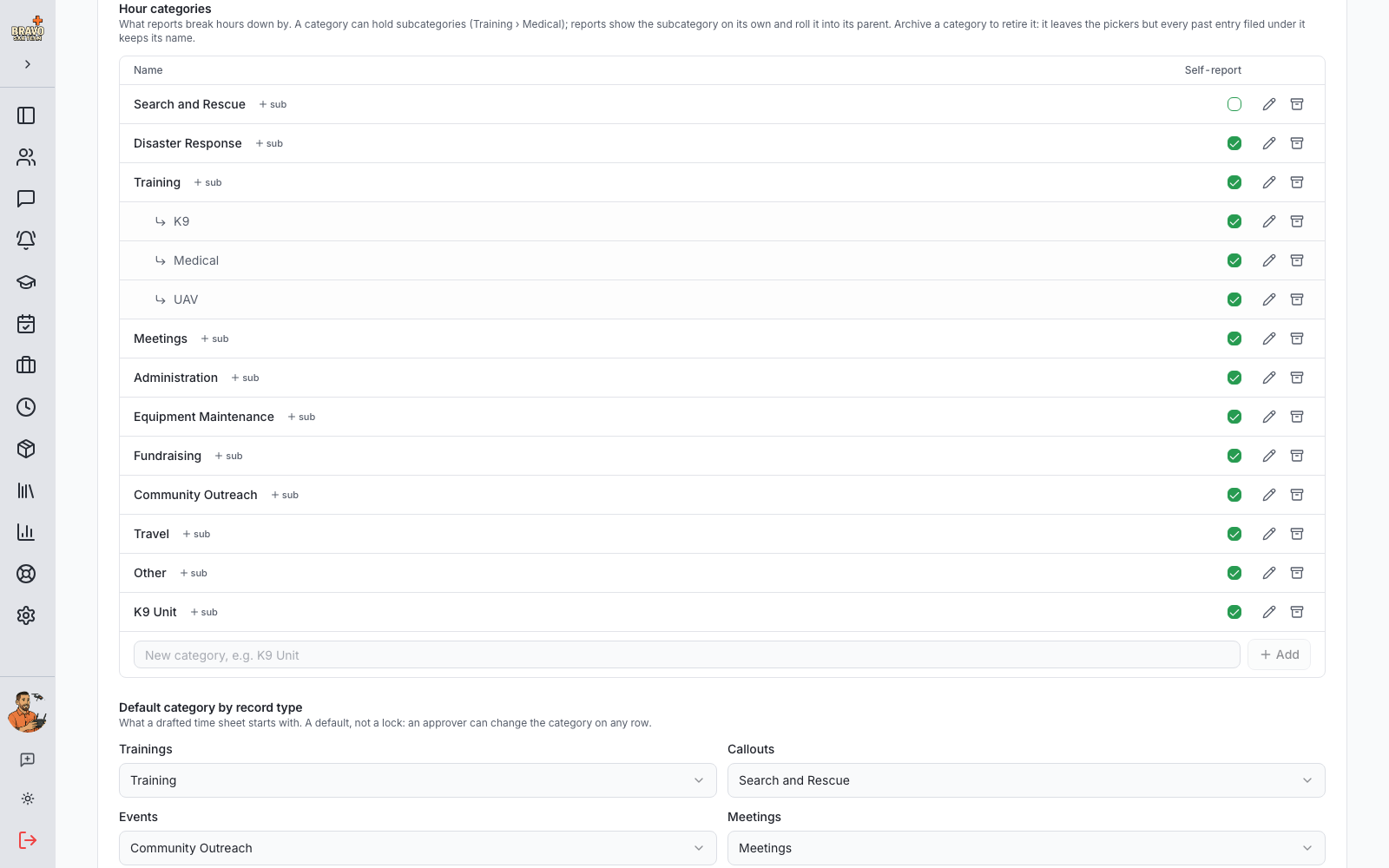
Shape your categories
Categories are how reports get sliced, so make them match how your team talks. Add a category for anything you report on separately, and add subcategories under a parent when you want detail without losing the roll-up — Training with K9, Medical and UAV underneath, say. Reports show the subcategory and the parent total.
Each record type has a default category (trainings default to Training, callouts to Search and Rescue) that a prefilled time sheet starts from; approvers can change it on any row. Archiving a category hides it from pickers but keeps every hour already logged against it.
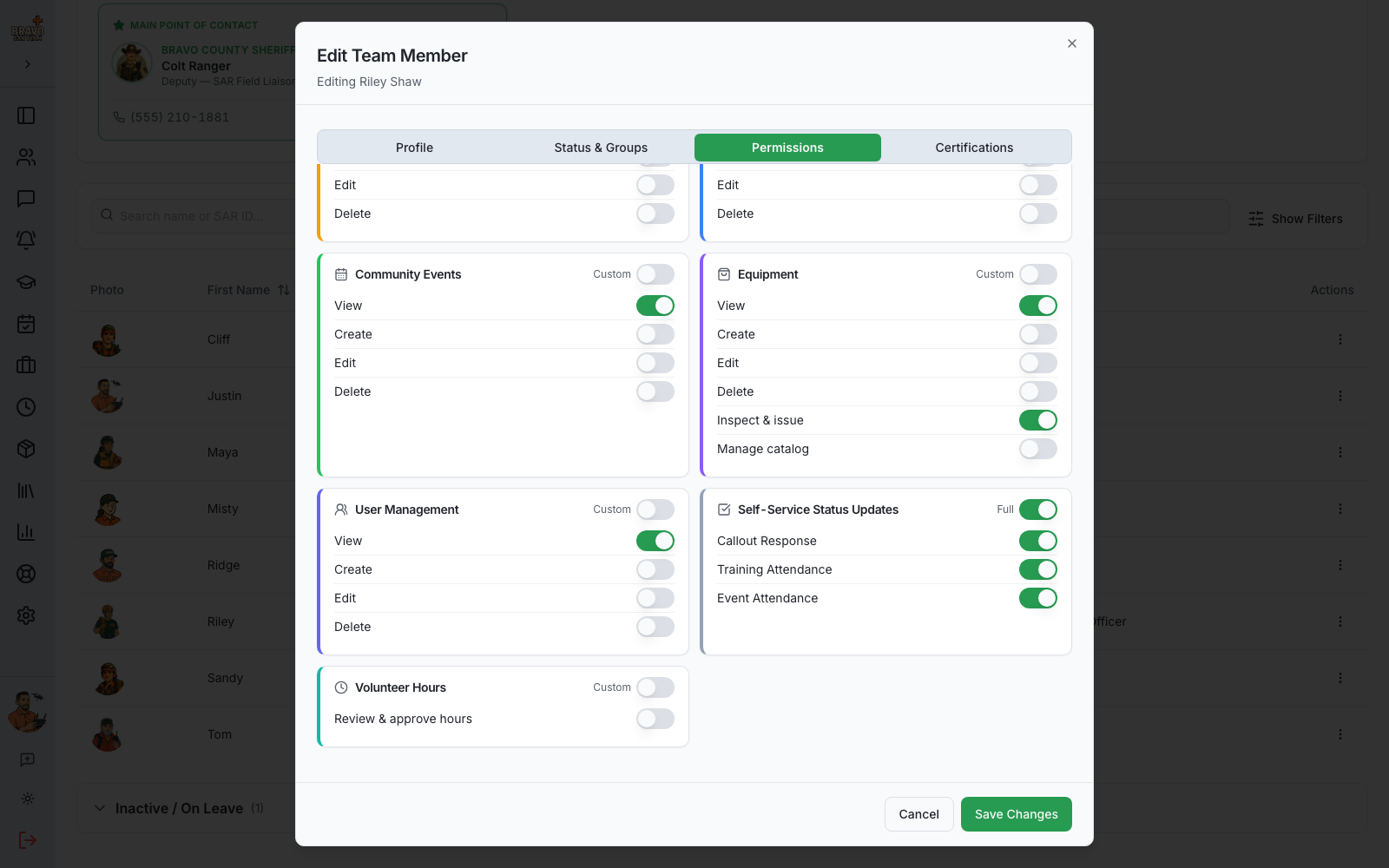
Choose who approves
Admins can always review and approve. To let a training officer or a hours coordinator do it without full admin rights, open the member under Team Members and switch on Review & approve hours. The Volunteer Hours page appears in the sidebar for everyone who can approve.
Draft a time sheet from attendance
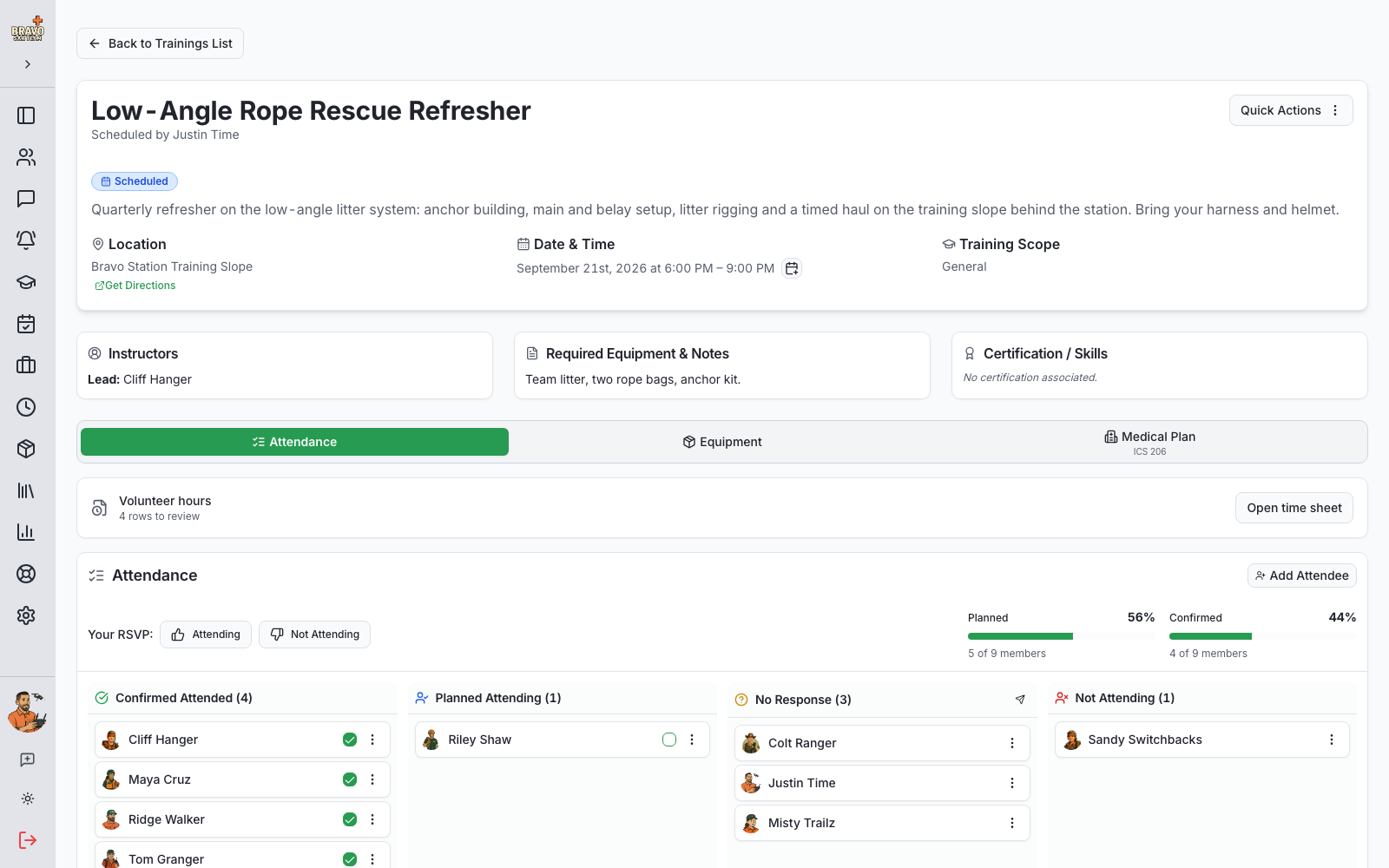
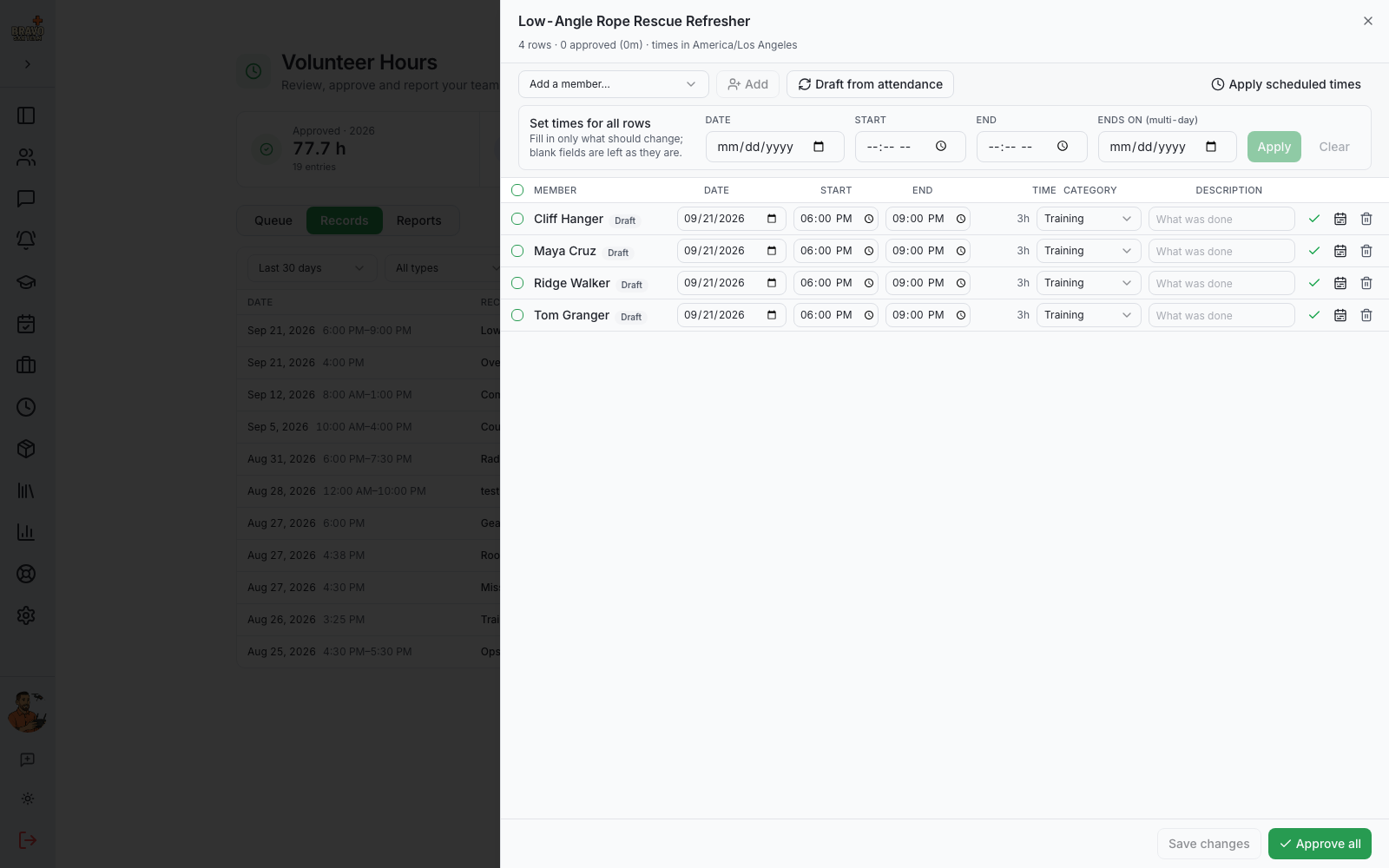
A time sheet is just the hours for one training, callout, event or meeting, one row per member. Open Volunteer Hours → Records, find the activity and click Create draft sheet — or open the Hours card on the activity page itself. In Prefill mode the sheet is usually already waiting for you.
Rows start from the scheduled times. Use Set times to apply one start, end or end date to every selected row (multi-day exercises included), add a walk-in who never RSVP’d, add a travel line, or pull in late confirmations with Draft from attendance.
Callouts have no scheduled end, so a member’s row runs from when they marked themselves Responding to when they were dismissed. If a member never got an end time, the row is flagged and waits until you set one.
Let members check themselves in
On the Self check-in rung, every training, event and meeting in the mobile app gets a big Check in button that opens two hours before the start and a Check out button afterwards. On a callout the Arrived response is the check-in, so only Check out is added. Each tap is stamped by the server clock, never the phone, and a member can only record one in and one out per activity.
Post a check-in code where members walk in. Print one for the whole team, or one per saved location so the sheet also shows where someone checked in. A member taps their photo in the app’s header and chooses Scan to check in, or points the phone camera at it, and gets a list of what is on today with the same buttons; on a laptop the code opens the same page in the browser. Checking in also marks the member as attending, and the training page shows the officer who checked in so attendance can be confirmed in one click.
Nothing scheduled? A member who scans can name what is happening, pick a category and check in. The next member to scan sees that session and joins with one tap. When the starter ends it, or at midnight, it drafts a time sheet like any training.
Check-ins are never hours by themselves. The time sheet shows "Checked in 9:02 · out 12:30" beside each member with a one-click Use these times, and the approver still reviews every row.
Review, approve, return
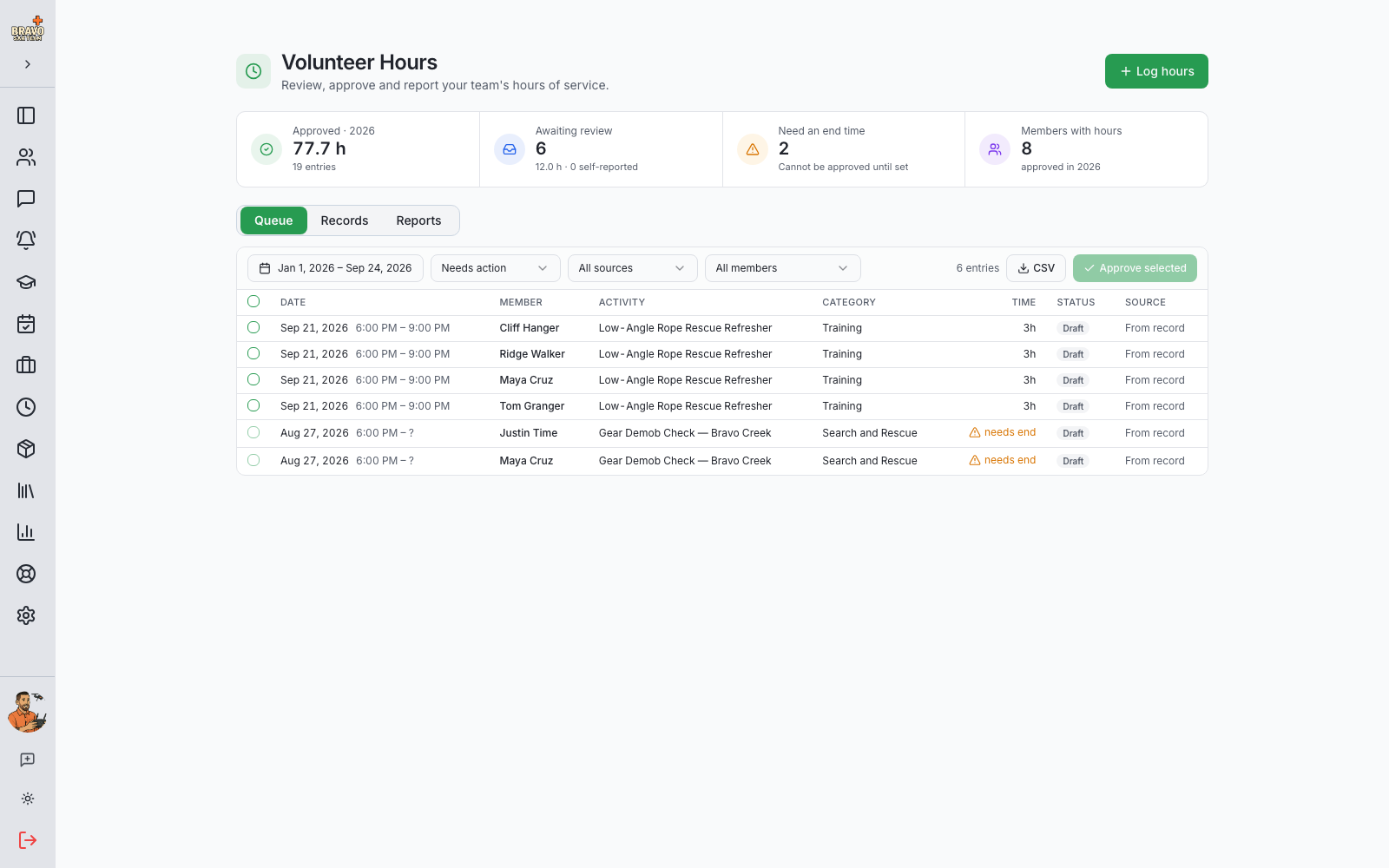
The Queue tab lists everything that needs a decision — drafts from records and hours members submitted themselves. Approve rows one at a time or select a batch and approve them together. Return a submitted entry with a reason and the member sees it on their profile and can fix and resubmit.
Made a mistake after approving? Reopen the entry, correct it and approve again. Every change is kept on the entry, so there is always a record of who approved what and when.
Let members log their own
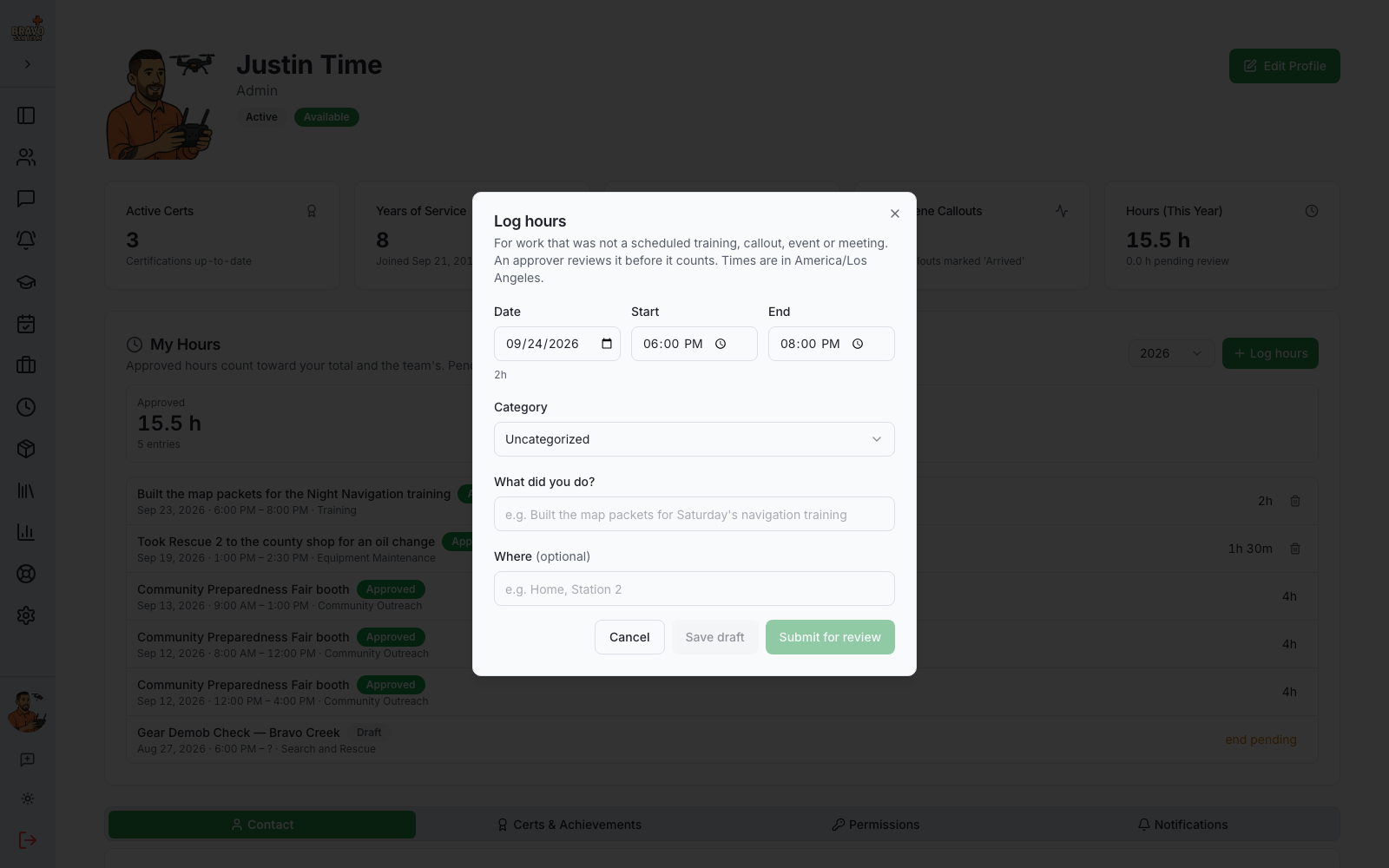
With Self-reporting on, members open the Hours tab on their profile, click Log hours, pick a self-reportable category, and enter the date, times and a short description. Submitted hours go to the queue; approved hours count toward the member’s This Year total and pending hours are shown separately so nobody mistakes them for approved.
Report on it
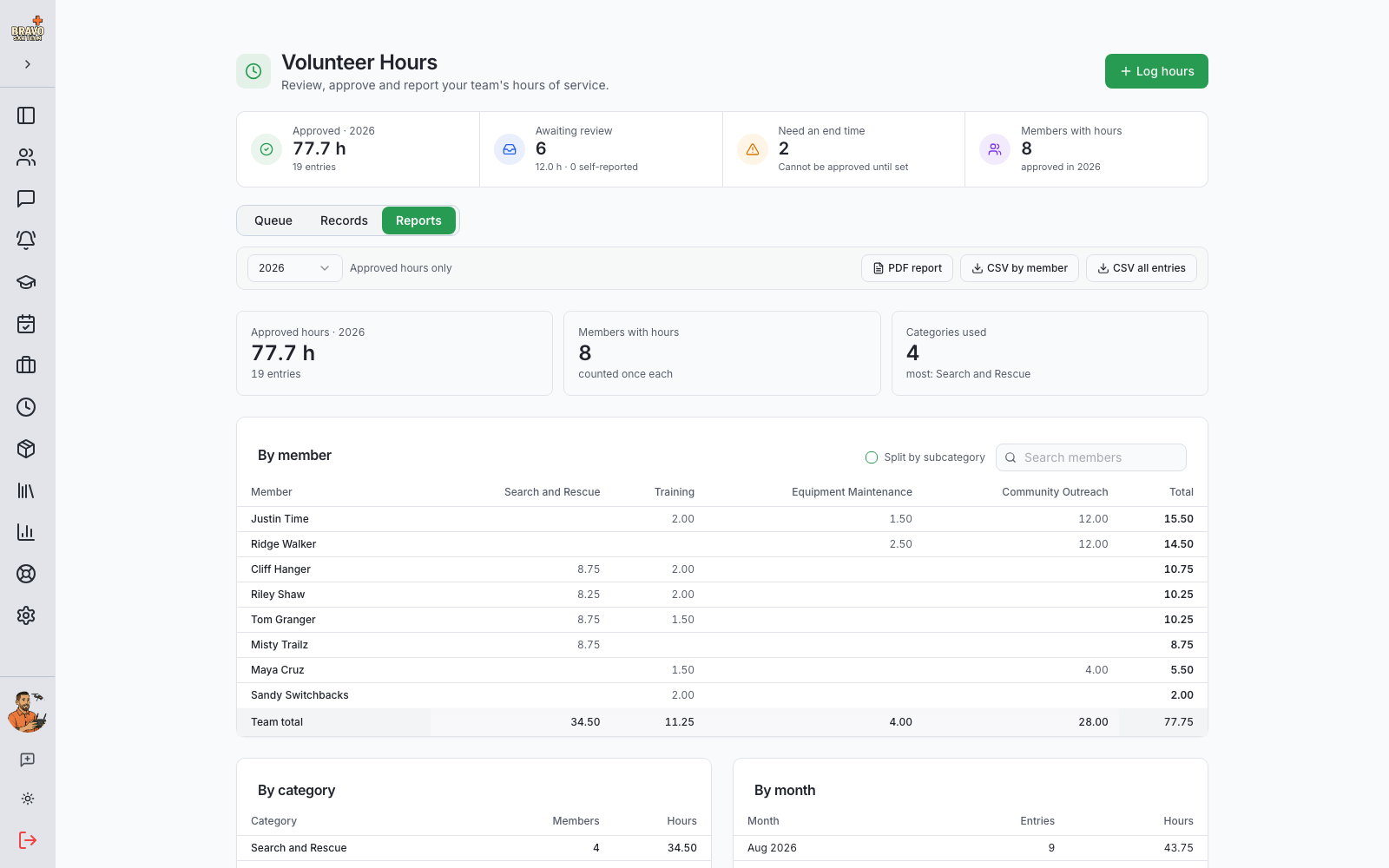
The Reports tab totals approved hours by member, by category, by activity and by month for any year, with subcategories rolled into their parents. Search the member table when your roster is large, then download the report as a PDF for a board packet or a CSV for a grant application.
Only approved hours are ever counted — in reports, on profiles and on the public widget. Drafts and submissions are visible to approvers but never add up to anything.
Share your hours publicly
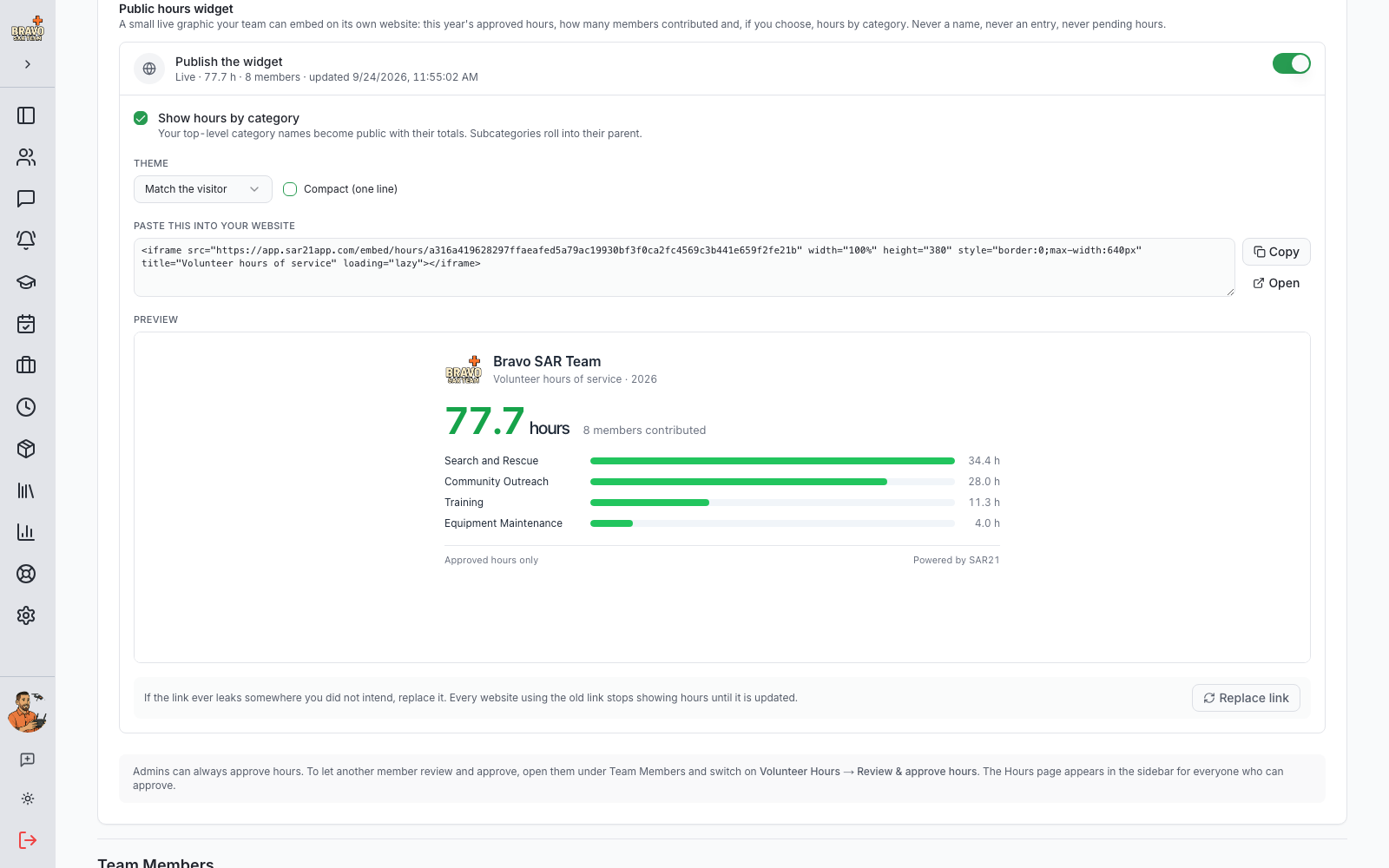
Under Volunteer Hours in Admin Settings, switch on the Public hours widget and paste the snippet into your team website. It shows this year’s approved hours, how many members contributed and, if you choose, hours by top-level category — and it updates itself within minutes of each approval. Never a name, never an unapproved hour.
Below is a real one: the Bravo SAR Team demo account’s widget, live from their approved hours. If the link ever ends up somewhere you did not intend, Replace link issues a new one and the old embed goes dark.